
The person heating the sauna, the one handing over the boat and the guide running the tour all ask the same thing in the morning: what’s on today? The answer is in TWICE Commerce. But they look at their phone, and on the phone it’s Google Calendar.
So bookings get copied over by hand. That works for a week. Then a customer moves their time, the copy goes stale, and someone waits at a locked door.
A calendar is only as good as its last update.
This tip covers what TWICE Commerce does on its own, where copying by hand breaks, and how to get orders into Google Calendar so they stay right.
What TWICE Commerce has built in
TWICE Commerce has its own order calendar. On the Orders view you can switch the layout from the table to a calendar of pickups and returns, by week or by month. Click an event and you’re in the order.
It’s a good tool at the counter. The limits show up elsewhere:
- The calendar lives in the admin, so seeing it takes a TWICE Commerce login.
- It shows pickups and returns, not the booking as one block from start to end.
- The TWICE Commerce docs don’t mention exporting to Google Calendar, or a calendar link you could subscribe to on a phone.
So TWICE Commerce knows what’s coming. The calendar on the phone doesn’t.
Why copying by hand breaks
Changes don’t follow. A customer moves their sauna slot by an hour, and TWICE Commerce updates. The copy in the calendar doesn’t.
Cancellations stay. A cancelled boat booking is still in the calendar, and someone gets the boat ready for nobody.
It costs time every day. Ten bookings a day is ten copies — and one of them goes wrong.
Orders into the calendar, automatically
This is what we built. Every TWICE Commerce order is one event in Google Calendar, and it stays right without anyone touching it.
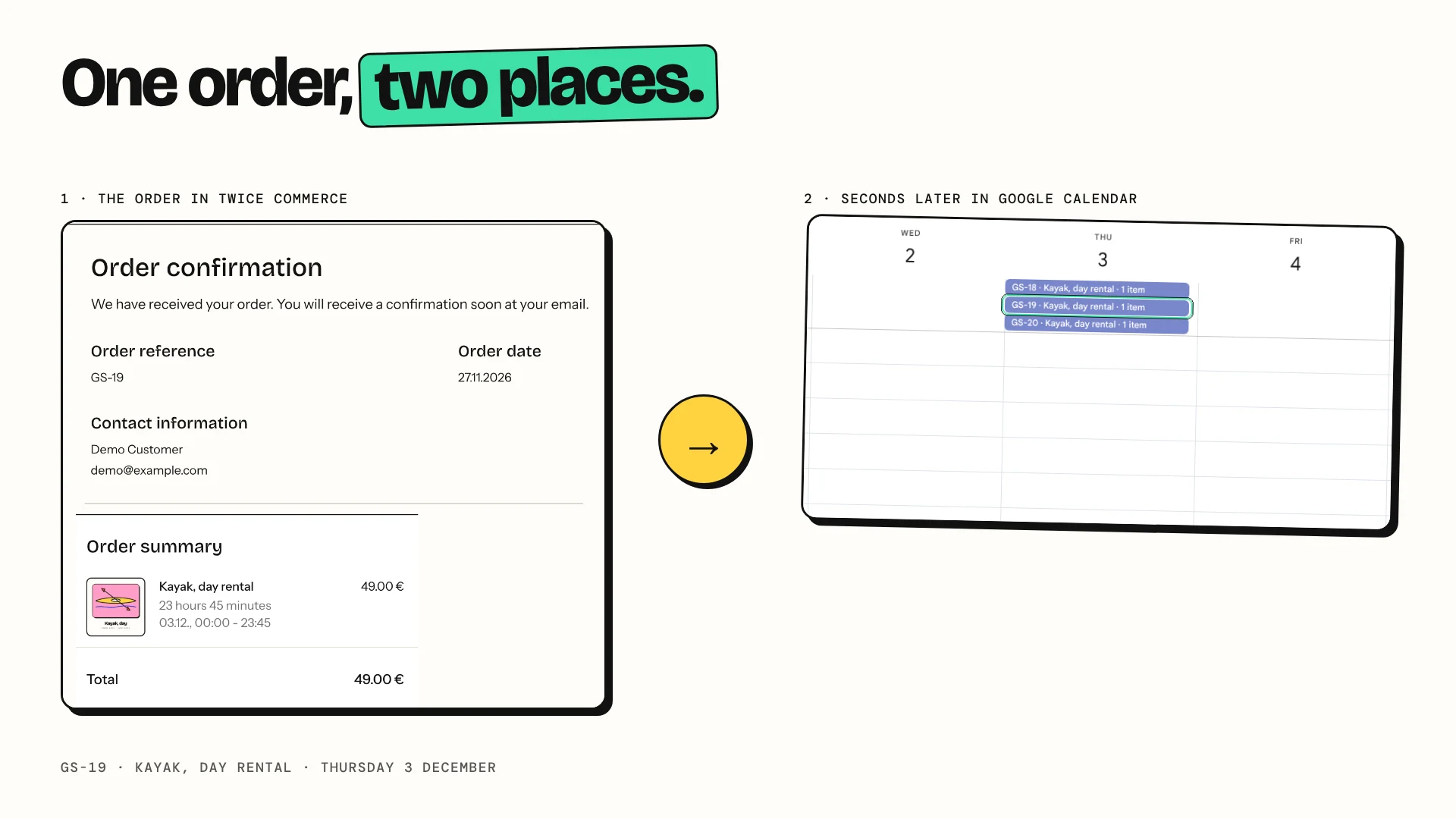
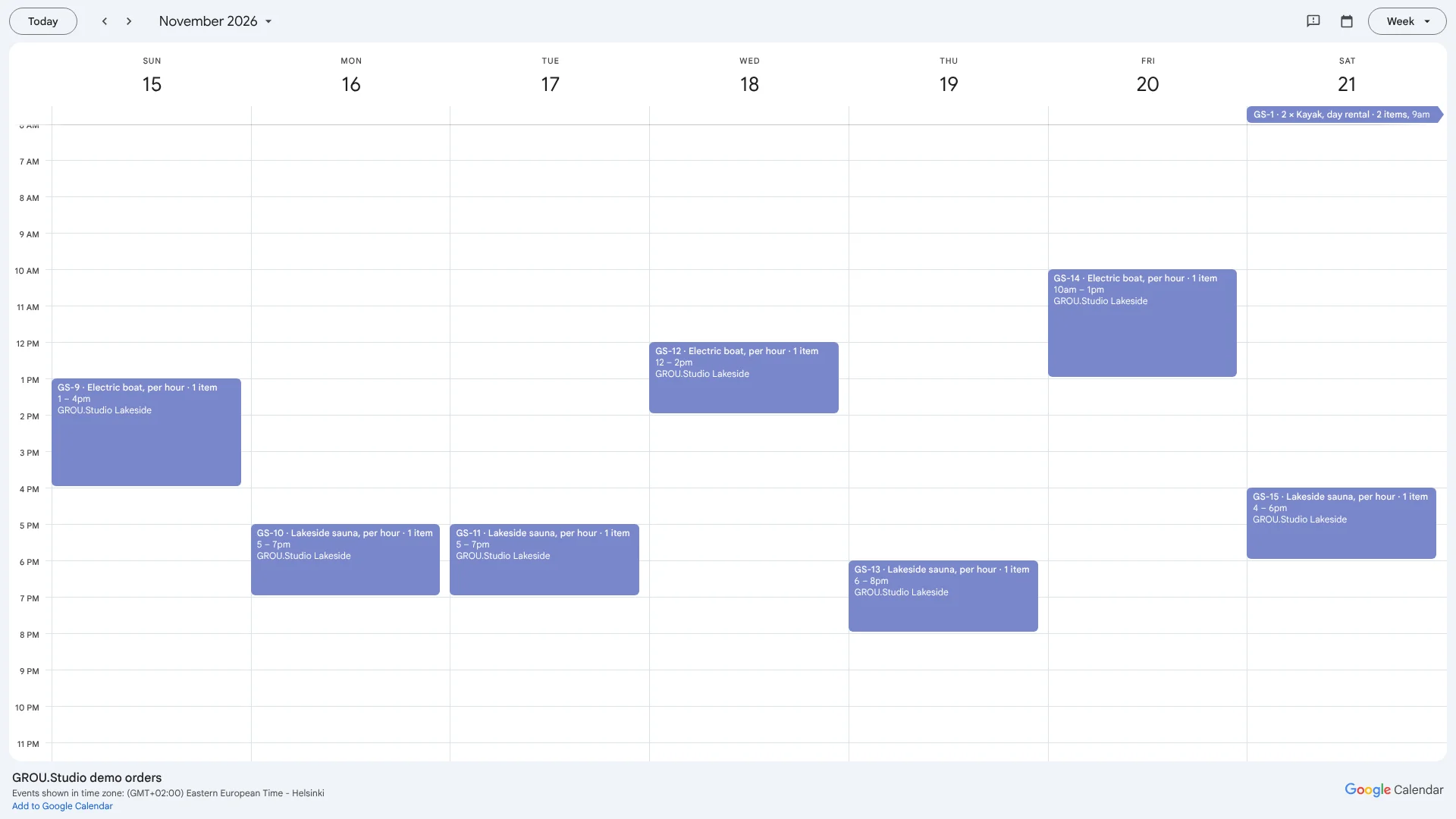
- A new order shows up in the calendar within seconds.
- A changed time moves the event.
- A cancelled, archived or deleted order disappears from the calendar.
- An hourly booking shows as hours, a whole-day rental as whole days. Two kayaks on one order read 2 × Kayak.
Connecting the calendar takes the shop about two minutes, and there’s no Google login screen: you share the calendar with a robot address and paste its ID on the settings page.
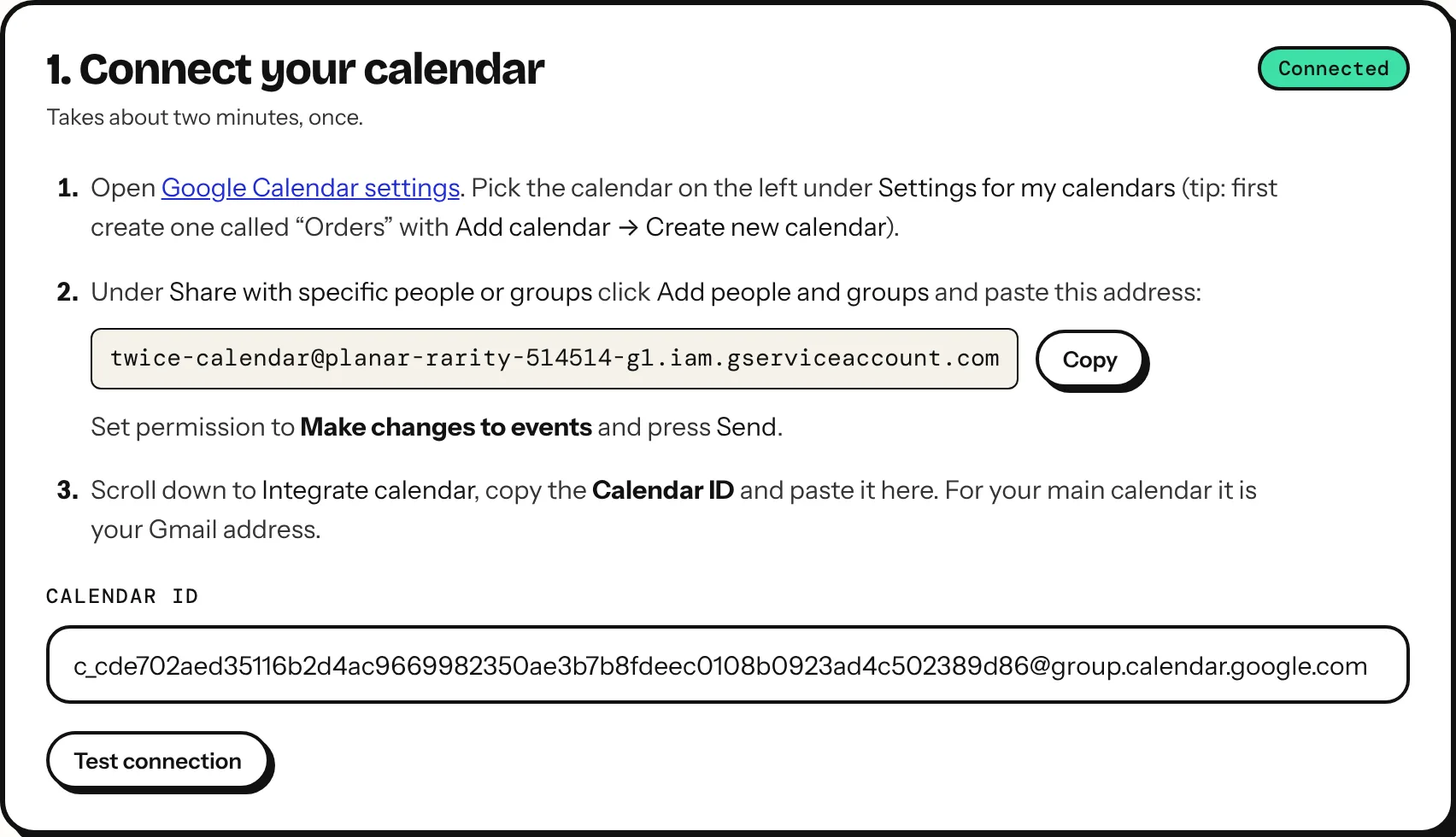
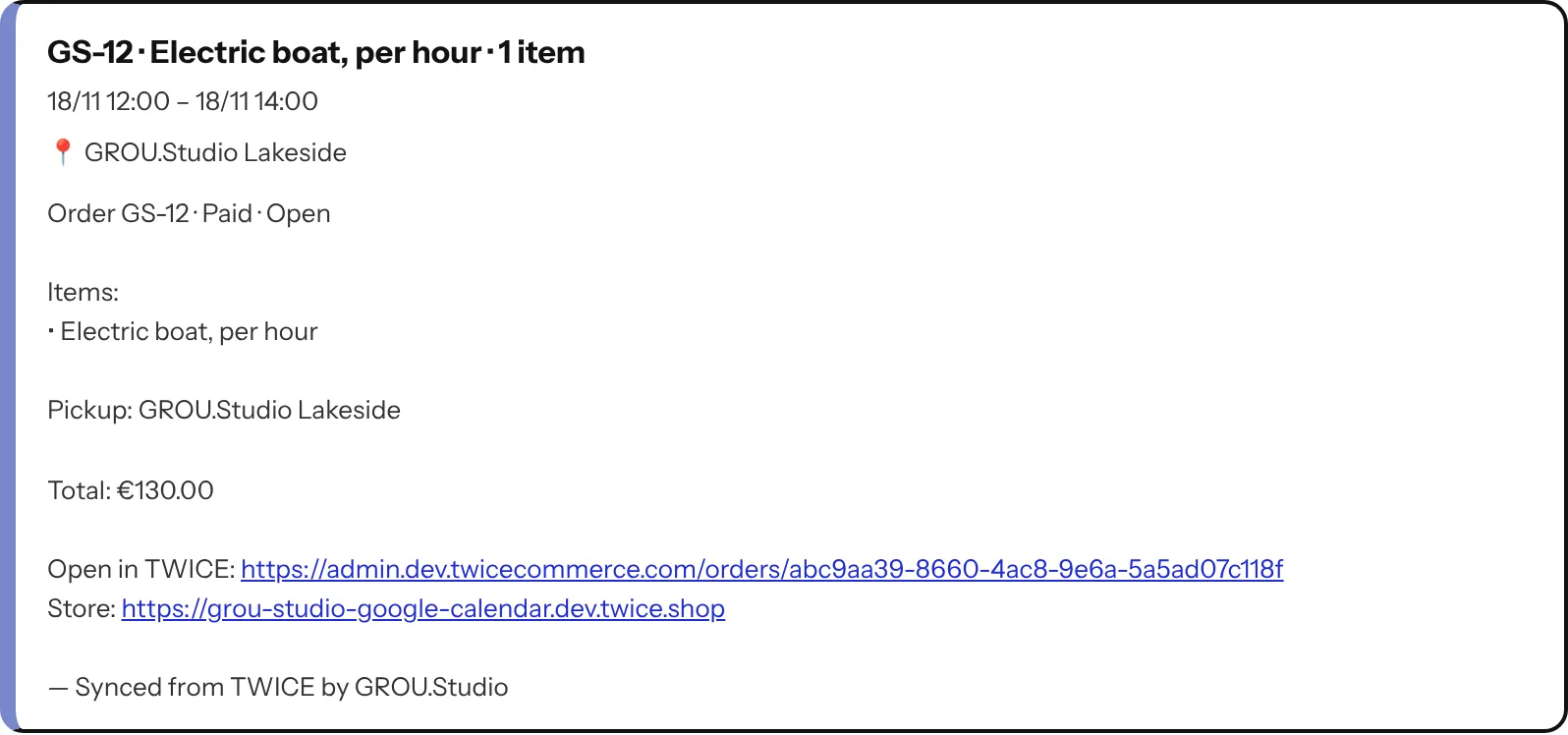
On the same page you choose whether all orders go in or only paid ones, and what the event shows: order number, first item, item count, customer details, total and a link to the order. The language can be English, Finnish or each customer’s own.
Try it: book a sauna or a boat in the demo store and open the demo calendar. Your booking is there a moment later. The calendar is public, so leave your real name out.
The part that surprises people: the calendar is for reading
If you have edit rights, you can drag an event to another slot in Google Calendar. The order still doesn’t change. TWICE Commerce is the master, and the next change to the order writes the event back to the right time.
Move the booking in TWICE Commerce. The calendar follows.
That’s why most staff only need to see the calendar. Keep edit rights for the few who know that a change made in the calendar doesn’t move the booking.
Common mistakes
A customer’s name in a public calendar
Name, email and phone are separate choices for the title and for the description. Hide the name from the description but leave it in the title, and it still shows. A public calendar should carry no customer details at all — share the shop’s real calendar with staff only.
Your own main calendar as the shop calendar
Your main calendar works, but then orders mix with your own appointments, and sharing it with staff shares those too. Make the shop its own calendar (Add calendar → Create new calendar) and paste its ID. The ID is a long string ending in @group.calendar.google.com.
Shared without edit rights
If the calendar is shared with the robot as view-only, the robot can see it but can’t add anything. The permission has to be Make changes to events.
A few common questions
Can staff see the calendar without a TWICE Commerce login? Yes. You share it in Google like any other calendar.
Does it work in Outlook or on an iPhone? The events live in Google Calendar. Outlook and Apple Calendar can subscribe to a Google calendar and show it read-only.
Do old orders come in? Saving the settings brings in every order that hasn’t ended yet. Past orders stay out.
What does the robot see in my Google account? Only the one calendar you share with it.
Does it work with a company Google Workspace account? Usually. Some organisations block sharing calendars with outside addresses, and then an admin has to allow it.
In short
TWICE Commerce knows what’s on today. Google Calendar puts it on your staff’s phones — and keeps it right when bookings change.